 Panimate
A personalized animated card starts with something only you could say: a name, a small kindness, or a memory you share. You can make a written card in Panimate without recording your voice. The greeting uses a themed animated presentation; typing a message does not generate spoken audio.
This walkthrough makes one thank-you card from start to recipient preview. It uses the current browser creator and keeps generated illustrations turned off, so you can learn the steps without requesting image generation.
1. Choose a theme and one personal detail
Open the thank-you card creator. Keep Free preview selected and choose Thanks if it is not already selected. The creator currently labels Free preview as 15 seconds and Enhanced preview as 30 seconds, Free beta. These are preview modes, not a promise of an unlimited finished video.
Enter the optional To and From names. Choose one thing the recipient did and say why it mattered. You do not need a long speech or a list of compliments.
For this fictional example, Jordan is thanking Alex for bringing soup during a difficult week. Neither name nor story describes a real customer.
2. Type the exact card message
Paste your draft into Card message. For our example:
Alex, thank you for bringing soup when my week fell apart. Your kindness made a hard day easier. I’m lucky to have you nearby.
The detail about soup makes this more personal than “Thanks for everything.” Replace it with your own detail rather than copying a story that is not yours.
The field accepts up to 1,200 characters, but that is an input limit, not a recommended speaking length. If you later record this message, time your own reading and shorten it to fit the selected preview. Names, pauses and speaking pace change the duration.
3. Turn off generated illustrations for this first card
After entering a message, find Create illustrated moments from my words and uncheck it. It is selected by default. Leaving it on requests up to three generated illustrations; those are expressive scenes, not photographs of your memories or a person's likeness.
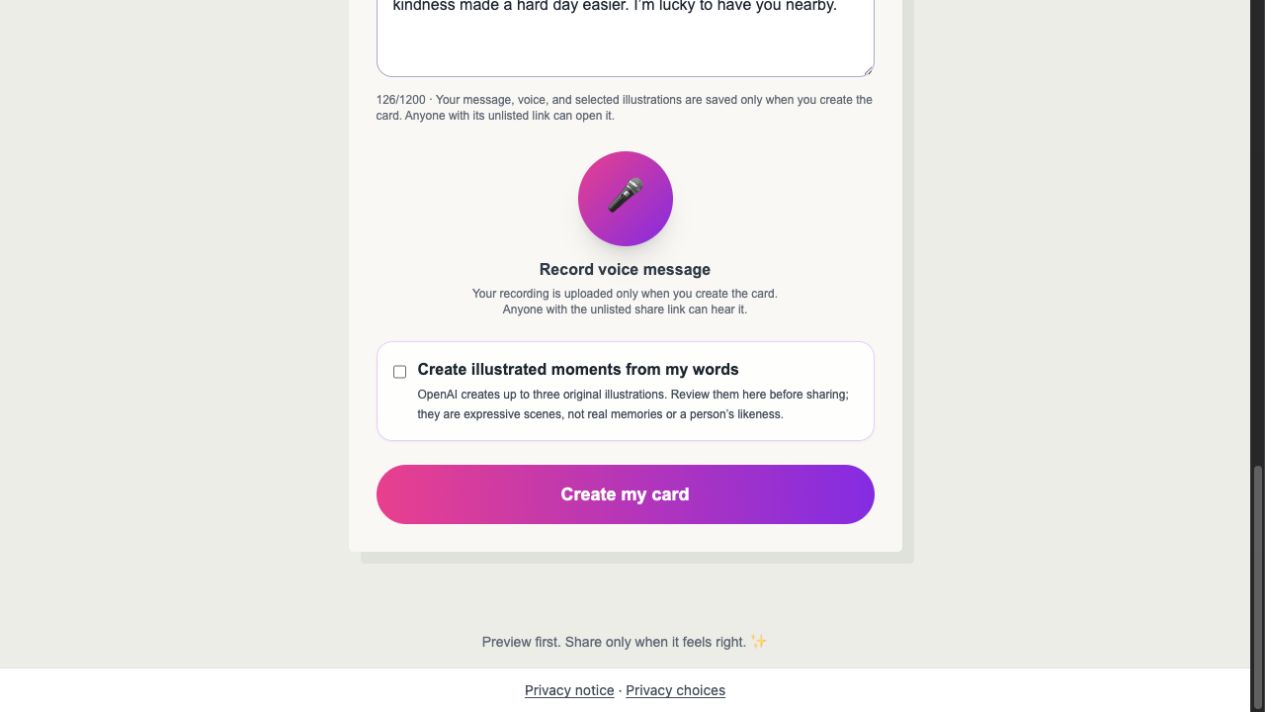
Current creator screenshot, October 22, 2026. The fictional message is partly visible above the controls. The empty checkbox is the setting used for this walkthrough.
With the option off, you can still make a personal written card with the theme's animated presentation. You do not need custom illustrations to say something meaningful.
4. Create the card and review the result
Select Create my card. Wait for the card preview and Share this link field to appear. Read the message from beginning to end and check spelling before using the link. If creation reports an error, resolve it first; do not assume the unfinished preview can be shared.
In our October 22 browser check, the fictional thank-you message produced a card link without a voice recording or generated illustrations. The Download MP4 button was disabled for that written-only card. A shareable card link and a downloadable video are different outputs.
5. Test the link before sending it
Use Copy link, then paste the complete link into a new browser tab. Check the recipient view yourself before pasting it into your chosen message or email.
Our test showed For Alex, the complete message, and from Jordan, with a note that the card was a written animated message. No message was sent to a recipient during the test.
Before you send your own card, check:
- The recipient and sender names are correct.
- The whole message appears, including its final sentence.
- If you recorded audio, it plays clearly on the device you expect the recipient to use.
- You are comfortable with the content being forwarded: anyone with the unlisted link can open it.
An unlisted link is not password protection. Keep private or sensitive details out of the card, and do not assume permanent storage or guaranteed availability. See the privacy notice before adding personal information.
If you want to add your own voice
Use Record voice message in a supported browser and allow microphone access only when you are ready. Record in a quiet place, stop, then check the transcript and preview. A recording is uploaded when you create the card. Anyone with its link can hear the included recording.
Typing text alone does not create an AI voice or lip-sync a character. The written-card workflow above does not require microphone permission. For recording guidance, use the voice-card walkthrough.
The creator offers a Download MP4 control for cards with recorded audio; export depends on the device and browser, and the page must stay open while rendering. That download was not exercised in this written-card walkthrough. Test your own output before relying on it for a gift deadline.
What this workflow does and does not include
This is a browser card workflow: theme, personal message, optional recording, preview and a tested link. It does not include a music library, custom character editor, automatic text-to-speech or a guarantee that every device will play every export. Checkout is not live in the creator; the separate done-for-you service requires manual review. Check current preview and service details rather than assuming an upgrade is needed.
For a gift on a particular date, start with the birthday message guide. For this first card, keep it simple: one kindness, one honest sentence about its effect, and a link you have opened yourself.